Creating Templates
The Templates menu allows users to create templates for email and SMS notifications and set up formats for different types of letters that are frequently used by the property. Users can use this menu to create the following templates and letter formats:
-
Email Templates - allows users to create, modify, and delete email templates for all email communications carried out by the property. The email templates created here are listed in the Guest Email Template, and User Email Template fields of the Notifications screen. Users can create email templates in multiple languages, including Korean, Chinese, French, German, Danish, and English. By default, all emails will be sent in the default language configured for the property. If a language preference is selected for a guest (from the Language drop-drop list of the Guest Preferences tab), and the template has been configured for that language, the email to the guest will also be sent in the preferred language. If the template is not configured for the guest's preferred language, the email will be sent in the default property language.
-
SMS Templates - allows users to create templates for all guest communications carried out via SMS. Users can create, modify, and delete SMS templates. The SMS templates created here are listed in the Guest SMS Template, and User SMS Template fields of the Notifications screen.
-
Booking Letters - allows users to create, modify, and delete booking letter templates to send booking confirmation notifications to the guests. The Create Booking Letter screen displays tags pertaining to bookings, packages, and accounts. Breakpoint: 6006 - Booking Letter (Engineering - Letter Setup).
-
Account Letters - allows users to define account letters for all accounts related communications carried out by the property. Users can create, modify, and delete account letters from this screen. They can also create templates in multiple languages, including Korean, Chinese, French, German, Danish, and English. By default, all emails will be sent in the default language configured for the property. If a language preference is selected for an account (from the Language drop-drop list of the Miscellaneous tab), and the template has been configured for that language, the email to the account will also be sent in the preferred language. If the template is not configured for the account's preferred language, the email will be sent in the default property language. The account letters created here are displayed in the Account Letters (Groups à Accounts à Edit Company Account à Account Letter) screen. Breakpoint: 6007 - Account Letter (Engineering - Letter Setup).
-
Inquiry Denial Letters - allows users to define templates for denial of business inquiries. Users can create, modify, and delete inquiry denial letter templates. The inquiry denial letter created here are displayed in the Inquiry/Denial Letters (Groups à Accounts à Edit Company Account à Inquiry/Denials à Inquiry Denial Letter) screen. Breakpoint: 6008 - Inquiry/Denials (Engineering - Letter Setup).
-
Card Templates - allows properties to customize their registrations card formats. Users can create, modify, and delete card templates. Breakpoint: 50535 - Card Template (Engineering - Manager).
-
Sales Call Letters - allows users to define templates for sending sales call letters. Users can create, modify, and delete sales call letter templates. Sales call letters created here are displayed in the Sales Call Letter (Groups à Sales Calls à Sales Call Letter) screen. Breakpoint: 6009 - Sales Call Letter (Engineering - Letter Setup).
-
Tag Templates - allows users to define templates for luggage tags. Breakpoint: 65095 - Tag Template (Engineering - Manager). When a template with Car Registration Number tag added is selected for generating the luggage tag for a reservation, the car registration number entered (if any) will also be displayed in the printed tag.
-
WhatsApp Templates - allows properties integrated with WhatsApp Business to create templates for sending WhatsApp notifications to guests.
The procedure for creating templates is the same for all templates and letter formats. Perform the following steps to create a template or letter format:
Navigate to Settings à Utilities à Templates.
Select a template or letter format from the option listed in the left pane.
Click Create Template/Letter.
Refer to the following table and fill in the details:
|
Field |
Description |
|---|---|
|
Events |
Select the events for which the email notification can be used. This field is applicable only for email and SMS templates. |
|
Template/Letter Code |
A unique code to represent the template/letter. The template code field supports up to 6 alphanumeric characters, while the letter code field supports up to 8 alphanumeric characters. |
|
Template/Letter Name |
A name for the template/letter. Up to 50 alphanumeric characters are supported. |
|
List Order |
The position in which the template/letter must appear in the grid. System automatically generates a value based on the value of the previously created list item. |
|
Active |
When enabled, indicates that the template/letter is active. |
|
Set Default |
When enabled, it indicates that the template/letter is the default template for all email/SMS notifications. |
|
Language |
Select a preferred language from the drop-down list and click Add Language button to add the language. |
|
Message/Letter |
The content to be added in the template/letter. Users can click the tags available in the Tags section to bring them in to the Email Message section and modify the format of the content using the available options. |
|
Tags |
HTML tags that can be used to build the template/letter. This section displays only tags that are applicable to the events selected. Properties can configure the tags that must be displayed for an event. Users can also search for the preferred tag using the search box. |
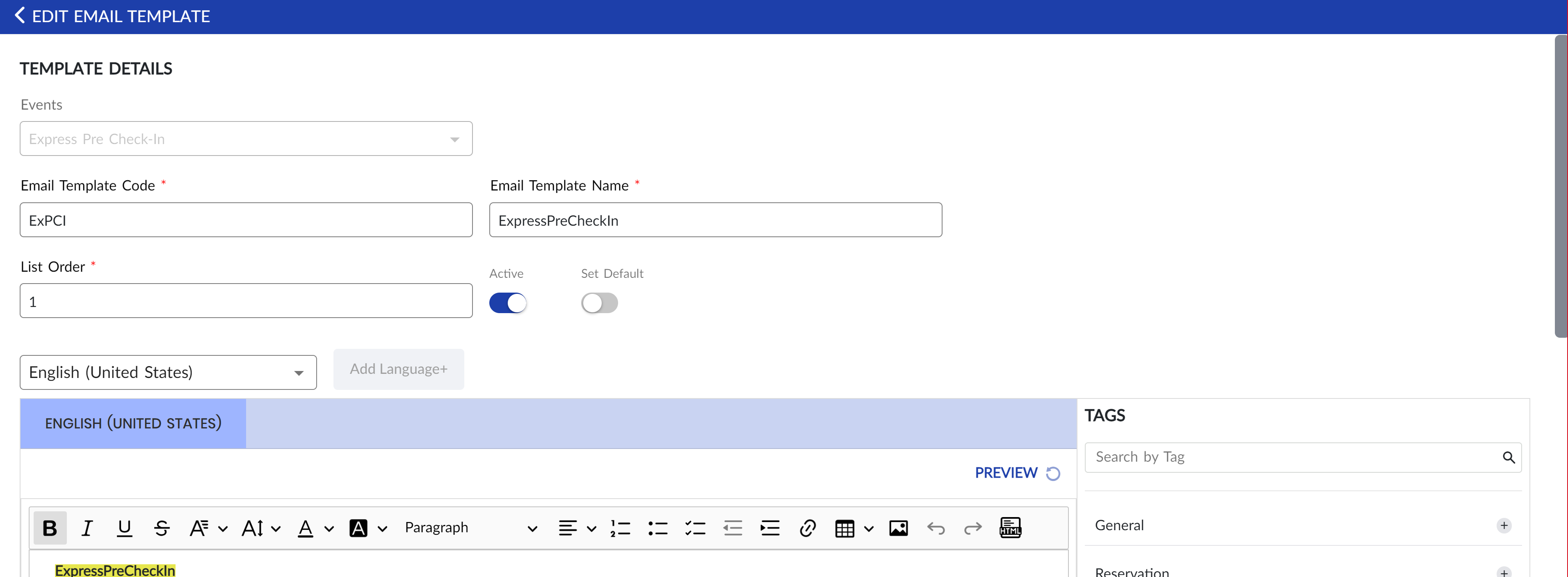
The Insert HTML option in the message header allows users to design the look and feel of the guest stay itinerary based on their preferences. Properties can also choose to contact Agilysys to design the itinerary in a preferred format.
Click Save. The email template/letter is created.
The templates created are displayed in the alphabetical order of Event Name.
Users can also perform the following actions from the Template/Letter screen:
-
Modify a template/letter using the Edit icon.
-
Delete a template/letter using the Delete icon. A template/letter cannot be deleted when in use.
-
Copy a template/letter with a new template/letter code using the Copy icon.
-
Drag a template/letter to change positions within the grid using the Drag icon.
-
Search for a template/letter using the template/letter code or name.
-
View inactive templates/letters using the Show Inactive toggle.
-
Filter email/SMS templates displayed in the grid based on events using the Filter icon.